The Feedance AI features is rolling out. Check it out!
How Feedance can help your revenue growth
250+ channel and platform integrations
Start optimizing with powerful integration
Wordpress compatible e-commerce integration
Start optimizing Magento very quickly
Open source e-commerce platform integration
Integrate ChatGPT Ads Catalog in seconds
Optimize Meta Catalog Ads
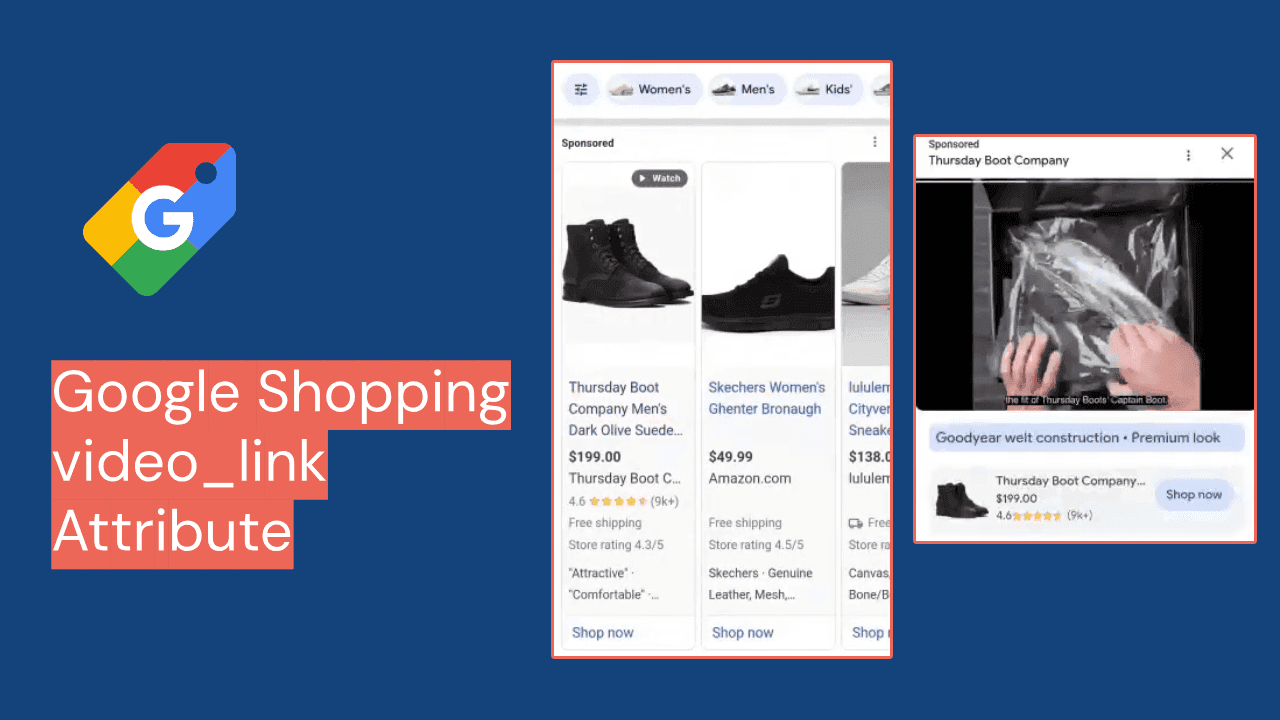
Optimize your Google Shopping visibility correctly
Optimization of TikTok Catalog Ads
iPaper is a Danish digital catalog and flipbook platform used by retailers, supermarkets, and DIY chains to turn product data and PDF brochures into interactive, mobile-friendly online catalogs. Two publishing paths sit at the core of the product: Flipbooks, which convert existing PDF catalogs into page-turning digital experiences, and Horizon, which builds catalog-style pages directly from a product feed without a PDF design step. Retail brands such as JYSK, Bricomarche, Conforama, and 10-4 use iPaper to keep seasonal offers, weekly brochures, and campaign catalogs shoppable and up to date.
In both publishing paths, product data is what turns a static page into a shoppable one: iPaper's Enrichment Automation reads a product feed or file and places clickable hotspots on top of the matching items in the catalog, so shoppers can view pricing, variants, and images or add products straight to a basket.
iPaper's own case data (cited from Danish DIY retailer 10-4) reports a 72.5% increase in webshop time after catalog visits, 87.0% more pages viewed via digital catalogs, and a 5.1% higher basket value for catalog visitors — figures that depend on the underlying product data being accurate, since price, stock, and image mismatches directly break the shopping experience inside the flipbook.
iPaper's Enrichment Automation is the mechanic that actually connects your feed to the catalog page. When a PDF is processed, iPaper extracts all text, hyperlinks, metadata, and the on-page position of every word. It then looks for Product IDs embedded in the PDF — as visible text, hidden text, a dedicated layer, or an Acrobat comment — and matches each one against the Product ID/SKU field in your data file or feed. Where a match is found, iPaper automatically creates the enrichment (a shop link, external link, pop-up frame, image gallery, or Product View card) and places it at that word's location.
Two matching approaches are supported: cross-referencing PDF-embedded IDs against your feed, or (for JavaScript integration) using a regular expression to extract IDs directly from the PDF text, for example matching a 6–10 digit numeric pattern, when no separate ID layer exists. iPaper documents that Product IDs can contain spaces if necessary but must never include line breaks and must not overlap with other text on the page, since either will break the match.
iPaper's Enrichment Automation accepts four data source types: .xml, .csv, .json, and a Google Merchant feed. Each of these can be supplied either as a static data file (a one-time snapshot, appropriate when product information won't change during the catalog's active period) or as a dynamic feed (a live URL, used when prices, stock, or other fields change during the flipbook's lifetime).
.xml
.csv
.json
iPaper only strictly requires one field to make matching work — a unique, persistent Product ID/SKU — but a richer feed unlocks more enrichment types (Product View cards, image galleries, shop pop-ups). If you supply data via the Google Merchant feed option, iPaper expects the standard Google Merchant Center attribute names shown below; for custom CSV/XML/JSON feeds, iPaper accepts your own column names as long as they stay consistent across updates.
id
title
description
price
color
size
image_link
additional_image_link
iPaper also recommends keeping the same Product ID for the same product across all countries and languages, so a single automation setup can be reused across catalog localizations.
iPaper does not publish a dedicated Feedance app or one-click partner integration — it ingests product data through Enrichment Automation's generic file/feed upload, which accepts an uploaded static file or a live feed URL. Feedance's role is to make sure the data reaching that upload step already matches what Enrichment Automation expects, so the setup on iPaper's side goes smoothly.
iPaper supports two update cadences for Enrichment Automation data sources:
iPaper's own guidance is to pick whichever cadence matches how often the underlying data actually changes: use a live feed with regular updates for promotional pricing and stock-sensitive campaigns, and a static one-time file for catalogs whose product data is fixed for the whole campaign period.
These are documented failure points from iPaper's own troubleshooting guide for Enrichment Automation, most of which trace back to the feed rather than the PDF:
General best practices — not sourced from an iPaper-specific document — for keeping an iPaper-bound feed healthy:
Which file formats does iPaper accept for product data?XML, CSV, JSON, and Google Merchant feed, supplied either as a one-time static file or as a live, regularly updated feed.
Does my feed have to use Google Merchant Center field names?Only if you choose iPaper's "Google Merchant feed" format option. For custom CSV, XML, or JSON feeds, iPaper reads whatever column/header names you use, as long as they stay consistent across updates.
What's the one field iPaper absolutely needs?A unique Product ID/SKU that also appears in the PDF (as visible text, hidden text, a layer, or a comment), since that ID is what Enrichment Automation uses to match feed rows to catalog pages.
Can iPaper read nested JSON or XML?No — iPaper's documentation explicitly asks for a flat, non-nested data structure so Enrichment Automation can parse it.
Should I use a static file or a live feed?Use a static file when your product data won't change for the life of the catalog; use a live feed when prices or stock change during that period.
My automation used to work and now produces no links — what changed?iPaper's troubleshooting guide points first at header-name consistency and Product ID matching, then at the PDF itself (scanned/non-selectable text, wrong hidden-layer name, or an unsupported PDF version above 1.7).
We’ll tailor your demo to your immediate needs and answer all your questions. Get ready to see how it works!